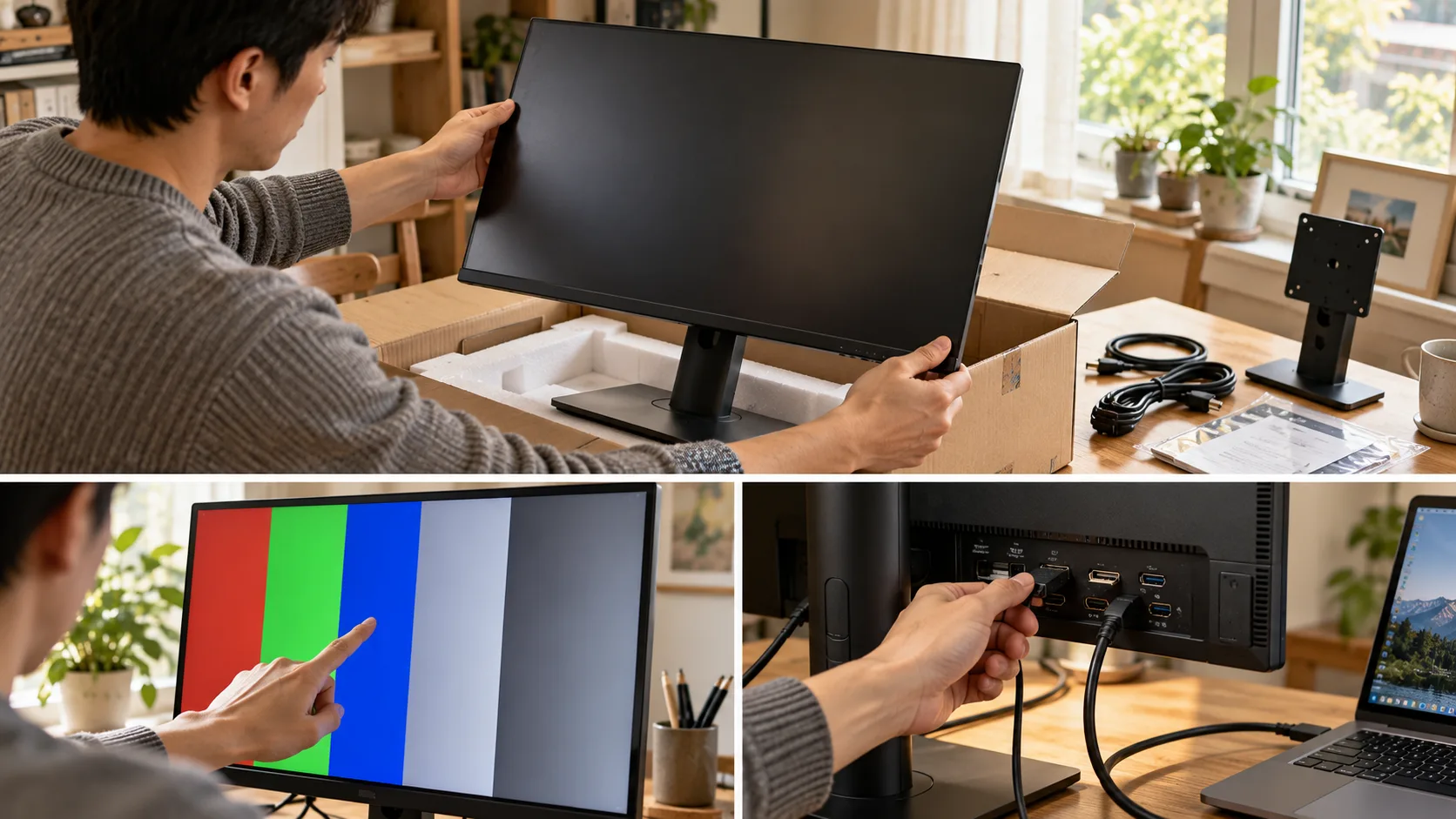
Buying a used monitor can be a smart way to improve your remote-work setup without paying full price. However, before handing over your money, you should check the display for dead pixels, confirm its ports and native resolution, and test it with your own laptop whenever possible.
For most remote workers, the best used monitor is not the one with the most impressive specifications. It is the one that displays readable text all day, fits the workspace, and does not create another troubleshooting project. Here is a practical used monitor checklist that can be completed during a local pickup or adapted for an online refurbished purchase.
Start With the Model Number, Not the Seller's Description
Ask the seller for a photograph of the manufacturer's label on the back, then find the official specifications for that exact model or revision. Listings that say only “27-inch 4K monitor” may omit important details: the actual native resolution, available ports, stand adjustability, or power-adapter requirement.
For document-heavy work, prioritize comfortable text size, sensible screen dimensions, and a stable connection over gaming features. A 24-inch 1080p panel can be adequate for a modest desk; a 27-inch 1440p display commonly provides more working space and sharper text at similar scaling. Actual comfort depends on eyesight, operating-system scaling, and viewing distance.
Before leaving home, compare the monitor's HDMI, DisplayPort, or USB-C inputs with your laptop or dock. An HDMI input does not guarantee a particular refresh rate at every resolution; USB-C on a monitor does not necessarily include laptop charging. Check the manual and the capabilities of your computer, cable, and adapter as a complete chain.
If a missing proprietary power supply or stand must be purchased separately, add its verified replacement cost before judging the deal.
The Ten-Minute Used Monitor Inspection
Do not let an attractive desktop wallpaper substitute for a screen test. Request access to a laptop, a suitable cable, and a few simple color patterns. If the seller will not permit a reasonable powered-on inspection, the uncertainty should affect your buying decision.
1. Examine the screen while it is off
Look across the dark panel at an angle in natural, indirect light. Search for scratches, pressure marks, coating damage, and cracks near the corners. Light dust is usually harmless; pressure damage and coating marks may remain visible every time you work. Check for gaps in the bezel or signs that the case has been opened or dropped.
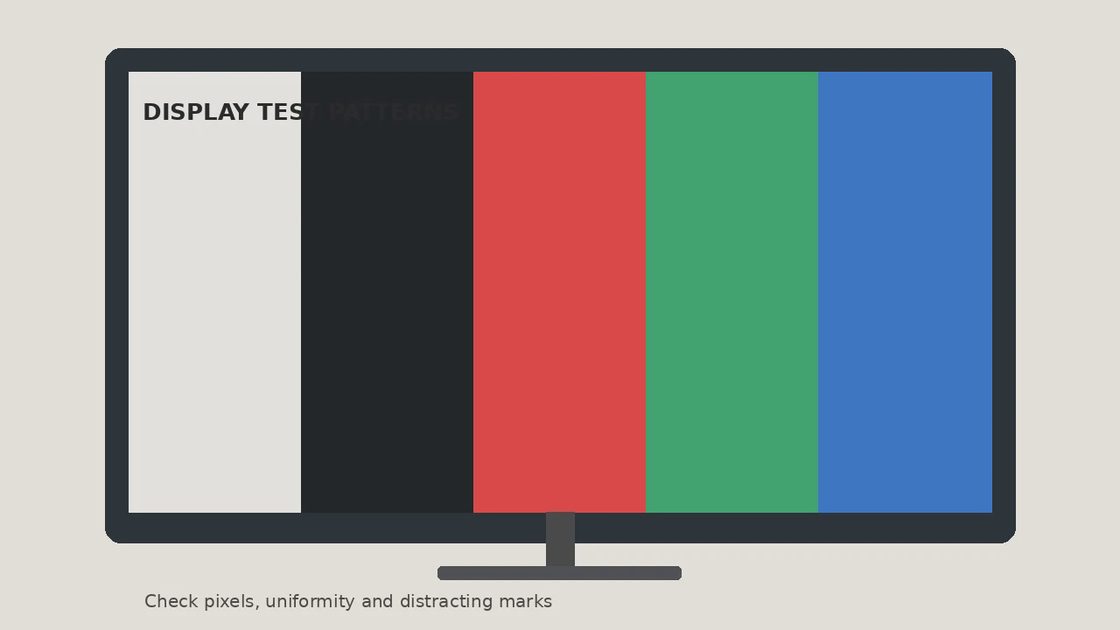
2. Display white, black, red, green, and blue
Solid colors help expose dead or stuck pixels, uneven brightness, and distracting tinted patches. Check the center and edges. A bright dot that stays fixed on a dark field may be a stuck pixel; a permanently dark point may indicate a dead pixel. Pixel policies vary between brands and models, so do not assume a manufacturer will replace a secondhand unit for one imperfect pixel.
EIZO offers a free monitor test covering defective pixels, uniformity, sharpness, and other characteristics. Its guidance recommends cleaning the display and allowing it to warm up before assessing the image. If you have only a few minutes, treat the result as a screening test rather than proof that the panel is flawless.
3. Look for flicker, retention, and uneven backlighting
Open a document with small black text on a light background, then a dark full-screen image. Watch for flicker, horizontal lines, persistent ghost images, or corners that are substantially brighter than the rest of the panel. Some LCD glow and viewing-angle changes are normal; severe, distracting irregularities are not.
Display artifacts can also come from the cable, computer, or chosen refresh rate. Where supported, a built-in monitor diagnostic helps distinguish the screen itself from the input signal. Dell, for example, documents built-in self-tests for compatible monitors; the procedure differs by model. A problem that appears in the monitor's own test deserves more suspicion than one that appears only through an unfamiliar adapter.
4. Verify the native resolution and useful refresh rate
Do not settle for seeing an image. Open the computer's display settings and confirm that the correct native resolution can be selected. Move a window across the screen, check text clarity, and test the refresh rate advertised for that model using a supported input. An incorrect setting may be fixable, but unexplained dropouts during the demonstration are a warning.
Ports, Stand, and Power Are Part of the Purchase
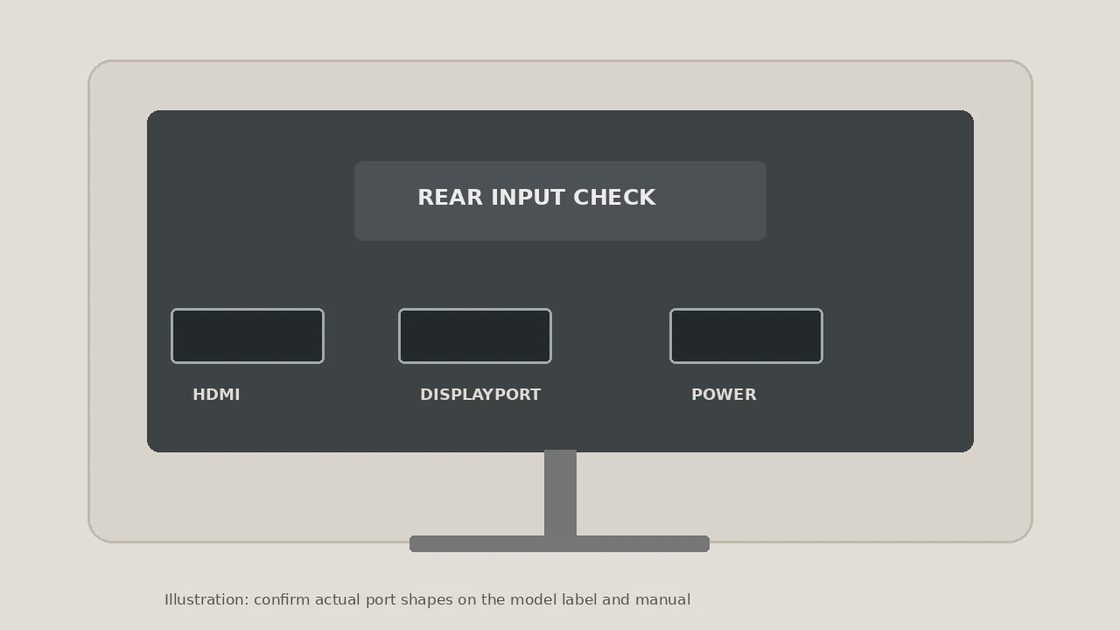
Turn the display around. Check every port you actually need for bent contacts, looseness, and damage around the socket. Try at least the primary input you plan to use. A monitor with two HDMI sockets is not necessarily a good deal if the only functioning one becomes unreliable when the cable moves slightly.
Inspect the power connector and power brick. Match the voltage, polarity, and model specification rather than trusting a generic replacement. Ask for the original adapter when possible. Avoid exposed wires, damaged plugs, electrical smells, or intermittent power.
Then adjust the monitor's tilt, height, and rotation where supported. Check that the stand locks securely, sits flat, and does not wobble excessively. If you use a monitor arm, verify the documented VESA mounting pattern and whether the necessary mounting hardware is present; do not assume every stand can be removed easily.
For home-office comfort, the OSHA workstation guidance advises placing the top of the screen at or below eye level and keeping the monitor at a comfortable viewing distance, generally about 20–40 inches. A cheap screen that cannot fit your desk ergonomically may cost more in daily frustration than a slightly more expensive adjustable model.
A Quick Decision Table for the Seller's Desk
What you observe | What it means for your decision |
|---|---|
Native resolution works, text is clear, no distracting defects | Stronger reason to consider buying, subject to price and return terms |
One minor pixel defect away from your normal work area | Decide whether you can tolerate it; price should reflect the condition |
Unexplained flicker or lines after changing cables and inputs | Walk away unless you knowingly want a repair project |
Missing stand or adapter | Calculate the exact replacement cost before paying |
Seller refuses a powered-on test and offers no return | Treat the risk as substantially higher |
The practical question is not whether a screen is perfect. It is whether you know its limitations, can live with them, and are paying enough less than a comparable new or warrantied refurbished monitor to accept the risk.
Used, Refurbished, or New: Which Is the Better Value?
A private-sale used monitor may cost less, but usually offers little recourse if a defect appears later. A refurbished unit from a reputable seller may include testing, a published condition grade, and a return period. Those promises are only useful when written down, so read the warranty terms and dead-pixel policy rather than relying on the word “refurbished.”
Here is a hypothetical comparison, not a current market price: a used display costs $95, while a comparable new one costs $160. If the used model needs a $25 adapter and the seller will not demonstrate it, the real saving is only $40 in exchange for a much larger uncertainty. A verified, complete $95 monitor is a different proposition.
Dorian Keaton's equipment-ledger approach suggests a useful distinction: record the purchase price, missing parts, known defects, and the job the screen needs to perform before deciding. For a remote worker, even an occasional failure during a client call may outweigh a modest discount. I would pay more for verified condition and an easy return than gamble on a prettier specification sheet.
Before You Hand Over the Money
Bring the right video cable, or confirm that the seller has one. Photograph the rear model label with permission, confirm the serial number matches any receipt if supplied, and keep the transaction record. For shipped purchases, confirm who covers return shipping, how long you have to test the panel, and what the seller considers an acceptable pixel defect.
You do not need to run an elaborate laboratory calibration. You do need to see the screen perform the tasks you will ask of it: open readable documents, hold a stable connection, show acceptable uniformity, and adjust to a comfortable position.
The simplest next step: before contacting a seller, write down your computer's video output, your target resolution, and the maximum total price including any missing accessories. Take those three details to the inspection. They will eliminate many bad fits before a bargain becomes another device to replace.